Stop printing, signing, and scanning. The definitive 2,000-word guide to turning your handwritten signature into a transparent digital asset for PDFs, PAN cards, and contracts using Local AI.
We have all been there. You are working from home or traveling. You receive an urgent contract or an invoice via email. The sender says, "Please sign and send it back ASAP."
You have no printer. You have no scanner.
So you do the "Jugaad": You sign on a piece of notebook paper. You take a photo with your phone (casting a shadow). You crop it. You paste this grey, ugly, pixelated box onto the pristine white PDF. It looks terrible. It screams "unprofessional". And worse, for government forms like PAN Card applications or Visa forms, this "grey box" often leads to automated rejection.
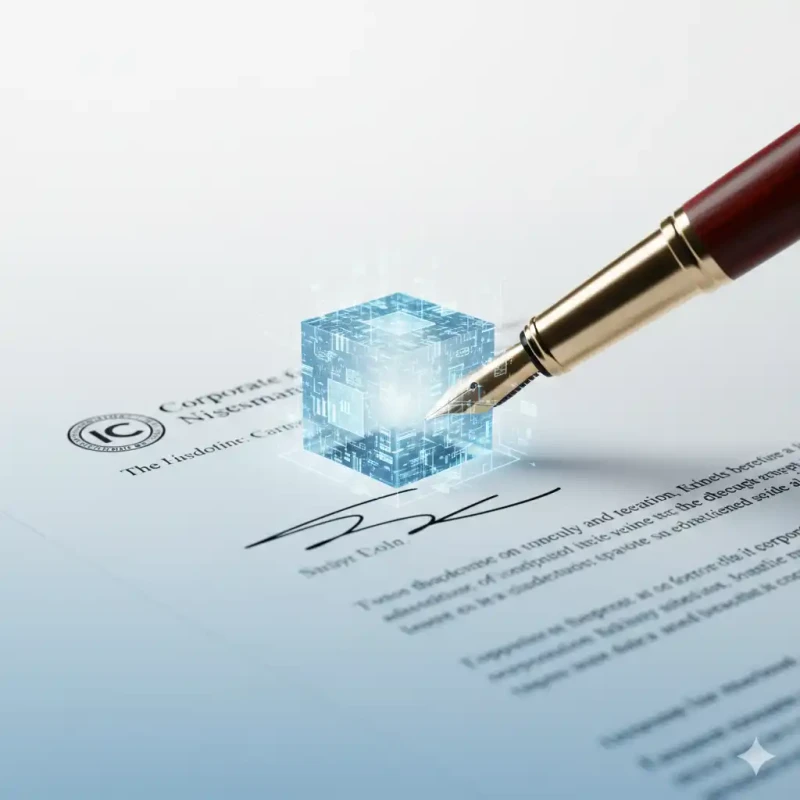
The solution is to create a High-Fidelity Transparent Signature Asset. A digital stamp that looks exactly like wet ink on paper. This guide will teach you how to create one using MojoDocs in 60 seconds.
Part 1: The "Physics" of a Signature Scan
Why do standard photos look bad? Cameras see light and shadow. A scanner sees contrast.
- The "Grey Box" Problem: Even white paper looks grey in indoor lighting. If you paste a "Grey White" image onto "Digital White" (Hex #FFFFFF) PDF, the mismatch is glaring.
- The "Multiply" Mistake: Designers often use the "Multiply" blend mode in Photoshop to make white disappear. This works on white backgrounds. But if you have to sign over a line or a colored background, "Multiply" darkens everything behind it.
You need a Transparent PNG (Alpha Channel). This means the pixels around the ink are literally deleted, not just hidden.
Part 2: The Setup (Analog Best Practices)
Garbage In, Garbage Out. To get a crisp digital signature, you must start with a good physical one.
1. The Pen Choice (Critical)
- Bad: Ballpoint Pens (Biot/Reynolds): They rely on friction. They often leave "railroad tracks" (two thin lines with a gap) or skip ink. The AI sees these gaps and creates a broken, dusty signature.
- Good: Gel Pens (Pilot/Trimax): Better flow, solid lines.
- Best: Sketch Pen / Sharpie (Thin Tip): The ink soaks into the paper, creating a high-contrast, solid black line that AI loves.
2. The Paper Choice
Use Printer Paper (Bond Paper). Do not use:
- Lined Notebook Paper (The AI might keep the blue lines).
- Napkins/Tissue (Ink bleeds).
- Crumpled Receipts.
3. The Lighting Hack
Don't use flash. The flash reflects off the graphite/ink, creating a white glare inside the letters.
Method: Put the paper on the floor near a window. Stand directly above it. Zoom in (2x) to avoid your own shadow falling on the paper.
Part 3: The MojoDocs Extraction Workflow
Now, let's digitize it using our Local AI.
Step 1: Upload
Open MojoDocs Background Remover. Upload your photo.
Step 2: AI Processing
Our model uses Semantic Segmentation. It doesn't just look for colors; it looks for "Stroke" patterns. It identifies the continuous curves of handwriting.
Note for Stamps: If you are digitizing a Company Rubber Stamp (Blue/Purple ink), this works perfectly too. The AI preserves the color hue.
Step 3: Verification
Download the PNG. Open it. It should look like black floating text on a checkerboard background.
Part 4: Legal Breakdown (India Context)
Is this legal? Can you just paste an image?
Electronic Signature vs Digital Signature
Under the Information Technology Act, 2000 (India), there is a distinction:
- Section 2(1)(ta) "Electronic Signature": This covers any electronic method used to authenticate a record. A scanned image of your signature IS VALID for most civil contracts, invoices, NDAs, and offer letters. It proves "Intent to Sign".
- "Digital Signature" (DSC): This refers to a cryptographic key (USB Token). This is mandatory for Ministry of Corporate Affairs (MCA) filings, Tax Audits, and Government Tenders.
Verdict: For 99% of daily freelancers, business owners, and employees (Invoices, Leave Applications, Rent Agreements), the MojoDocs signature is perfectly valid.
Part 5: Advanced Tricks
1. The "Blue Ink" Trick for Trust
In the corporate world, people often distrust Black & White signatures because they look like photocopies. They want to see an "Original".
Pro Tip: Sign with a Blue Gel Pen. Extract it with MojoDocs. When you paste this colored signature onto a B&W PDF, it pops. It psychologicaly assures the receiver: "This was signed by a human, not a machine."
2. "Self Attested" Stamp
In India, we constantly have to "Self Attest" documents (Aadhaar, PAN copies). Writing "Self Attested" + "Signature" + "Date" 50 times is painful.
Workflow:
1. Write "Self Attested" on top, Sign below it, leave space for date.
2. Extract this block as one PNG.
3. Paste it on every page of your 50-page Home Loan application PDF.
Part 6: Security Hygiene (Critical)
A high-res transparent PNG of your signature is effectively a blank check. If a malicious actor gets it, they can paste it on a "Property Transfer Deed" or a "Loan Guarantee".
Why MojoDocs is Safer:
- Cloud Risk: If you use "Remove.bg" or "Adobe Express", your signature goes to their server. If their database is hacked, your signature is leaked.
- Local Safety: MojoDocs processes ink patterns locally. We never see your signature.
Storage Tip: Once you create the PNG, store it in a secure folder (e.g., Apple Notes Locked, or an Encrypted Zip). Do not leave it on your Desktop named "Signature.png".
Conclusion
Going paperless isn't just about saving trees; it's about saving time. The ability to sign a document while sitting in an Uber, using just your phone and MojoDocs, is a superpower.
Create your master asset today. Use a good pen. Use good light. Keep it safe.