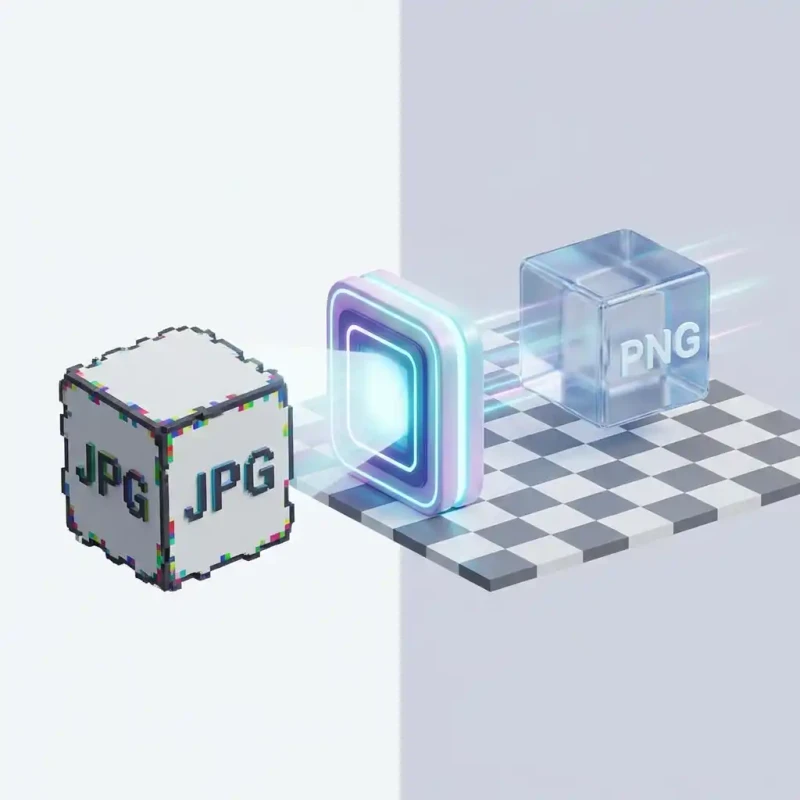
Struggling to open iPhone photos on your PC? Learn how to convert HEIC to JPG instantly in your browser without installing paid extensions.
You just came back from an amazing vacation. You plug your iPhone into your Windows PC to back up your photos, and... disaster. None of them will open. They are all .heic files, and Windows Photos says "We can't open this file."
This is the "High Efficiency Image Container" (HEIC) problem. While great for saving space on your phone, it is a nightmare for compatibility. Microsoft often asks you to pay $0.99 for an extension just to view your own pictures.
MojoDocs offers a free, instant solution. Our browser-based converter unlocks your photos by transforming them into standard JPGs that work on everything.
Why Does Apple Use HEIC?
HEIC is technically superior to JPG. It compresses images to half the size with better quality. That is why Apple made it the default. However, the rest of the world (Windows, Android, older web browsers) hasn't fully caught up yet.
The "Cloud" Trap
Most tutorials tell you to use sites like CloudConvert. But do you really want to upload 500 private family vacation photos to a random server? That data transfer takes hours and risks your privacy.
The Local Fix: MojoDocs decodes HEIC files on your computer. We compiled the HEIC decoder into your browser. This means you can convert gigabytes of photos instantly without a single file leaving your hard drive.
How to Convert HEIC to JPG
Here is the fast, free workflow:
1. Drag & Drop
Open MojoDocs in Chrome, Edge, or Firefox on your Windows PC. Drag your entire folder of .HEIC files into the window.
2. "JPG" is Pre-Selected
Our tool detects HEIC inputs and automatically sets the output to JPG (since that is usually what you want). You can also choose PNG if you prefer lossless quality, though files will be larger.
3. Instant Conversion
Click Convert. You will see the progress bars fly. Because the decoding happens on your CPU, it is blazingly fast.
4. Download ZIP
Grab your converted memories in a single ZIP file. Now they will open in Windows Photos, Photoshop, or can be uploaded to Instagram without issue.
MojoDocs vs. Microsoft Store Extension
| Method | Cost | Convenience |
|---|---|---|
| Official HEIF Extension | $0.99 | Requires Install/Reboot |
| Cloud Converters | Free | Slow Uploads + Privacy Risk |
| MojoDocs | Free | Instant & Browser-Based |
Conclusion
Don't pay to view your own photos. And don't compromise your privacy by uploading them. Use MojoDocs to unlock your HEIC files locally.